Dates / Duration / Recurrence
Todos support "No Date" (pure checklist) as well as several date-related scheduling options. You can set these in two places:
- Quick-add bar (right side): Specify a date/recurrence while creating the todo
- Edit Todo: Add or adjust the date/recurrence rule for an existing todo
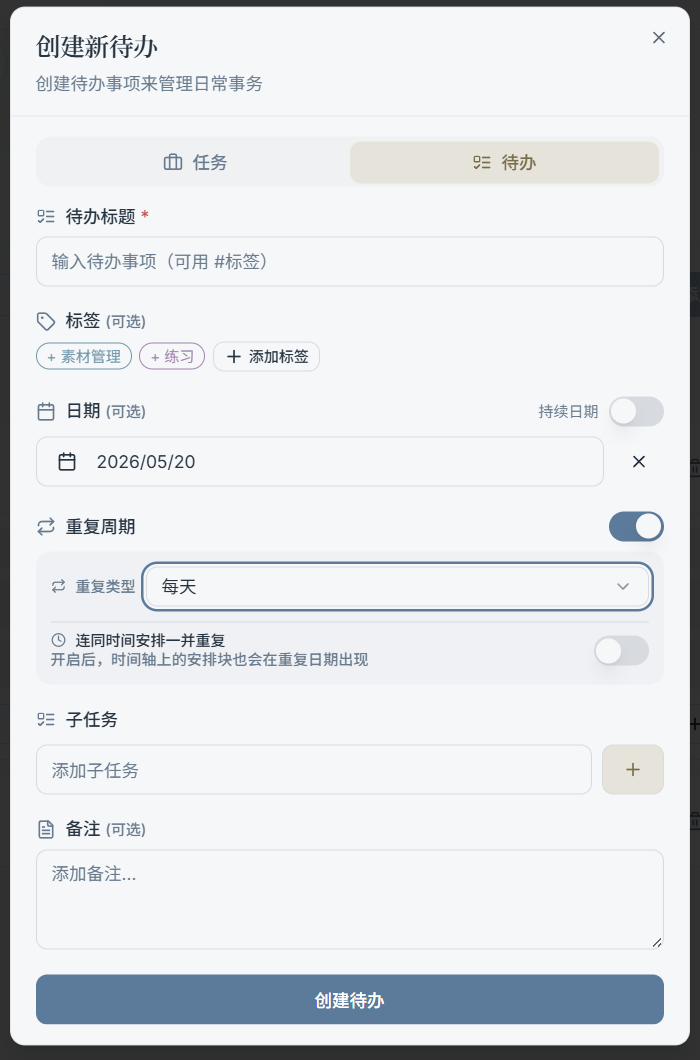
1) No Date
Suitable for checklist items you don't want tied to a calendar (e.g., buy laundry detergent, organize folders).
Todos without a date typically appear in "All Todos"; you can always add a date later.
2) Single Date (Today / Tomorrow / Custom)
When a todo has a specific day to be done, it's recommended to set a single date:
- Today: Immediately enters today's planning view
- Tomorrow: Keeps it out of today's list
- Custom Date: Use the calendar to pick a specific day
Tip:
- You can clear the date at any time to return it to "No Date" status.
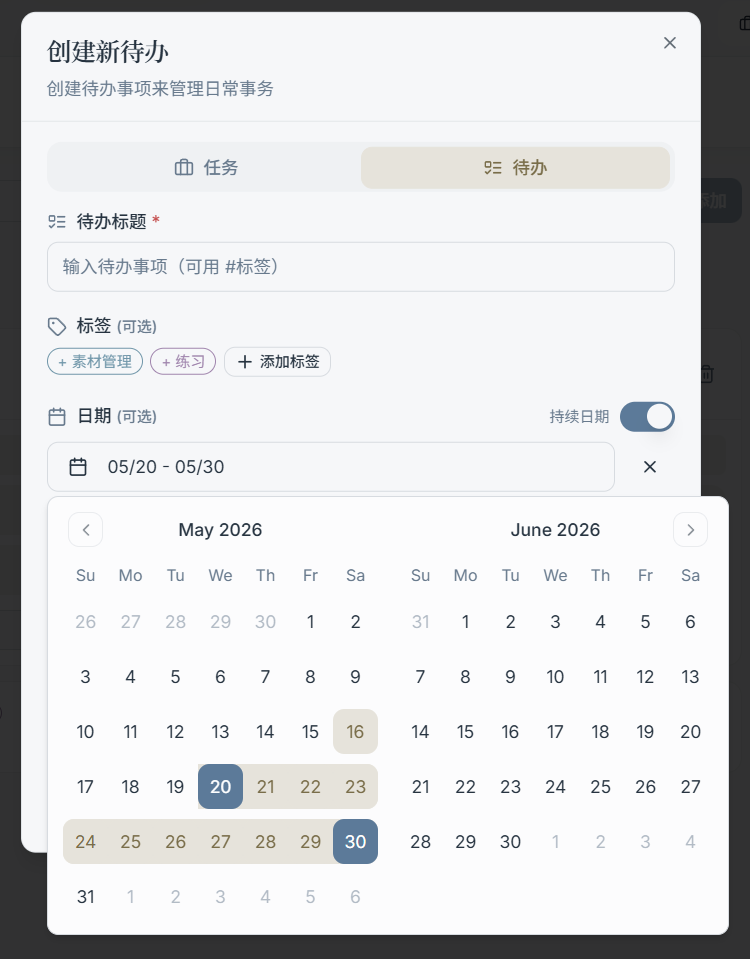
3) Duration Date (Start-to-End Range)
When a todo needs to span multiple days (e.g., 02/10 – 02/14), you can set a "Duration Date":
- Choose a start date and an end date
- The todo will cover the related views across that range (e.g., easier to track in the calendar)
4) Recurrence
When a todo needs to appear periodically (e.g., do bookkeeping every day, check in every weekday), you can set a recurrence rule. Common types:
- No recurrence
- Every day
- Weekdays
- Weekends
- Every X days (e.g., once every 3 days)
Tip:
- Recurring todos work best for "habit-type items." For project progress, using "Tasks + Nodes" is usually clearer.
Frequently Asked Questions
Why can't I see a todo I set a date for?
- If you're currently in the "This Month's Todos" view, it only shows todos within that month. Switch back to "All Todos" to check.
- Completed todos are hidden from the todo list by default (to prevent the list from being filled with completed items).