Search / Filter / Sort (incl. Batch Actions)
The filter area on the Tasks page helps you quickly narrow down a large list to just the tasks you care about.
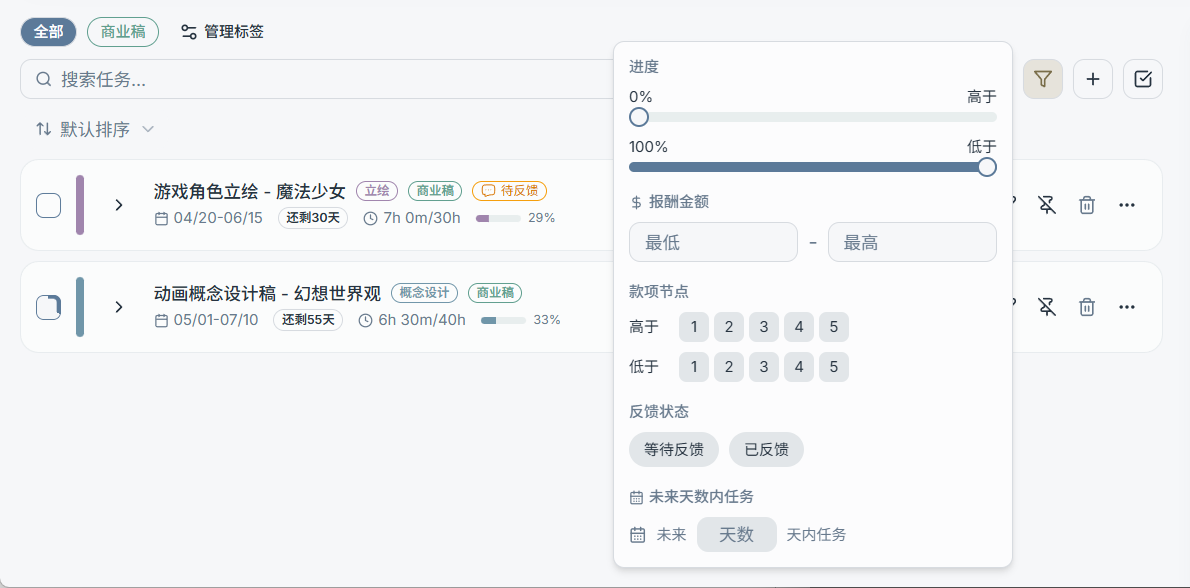
Tag Pill Filters
A row of tag pills is typically shown above the task list, for example:
- All
- No Tags
- Any tags you use frequently (e.g., Commercial / Personal / Live2D …)
- Manage Tags (opens the task tag manager)
Click a pill to switch the filter. You can also combine "Search" and "Advanced Filters" on top of the tag filter.
Search
Type a keyword in the search box to filter tasks. The search scope generally supports:
- Title
- Category
- Tags
- Notes
- Client info
If the interface provides a "Search scope" selector (e.g., a dropdown), it's worth narrowing the scope to improve match accuracy.
Advanced Filters
Advanced filters typically include structured conditions (may vary slightly by version), such as:
- Progress range (node completion percentage)
- Amount range (rate/earnings)
- Payment / milestone range
- Days remaining range
- Feedback status (if feedback tracking is enabled)
Tip: Save your most-used filter combination as a "Filter Preset" so you can apply it with one click next time.
Sort
Common sort options include:
- Default sort (usually factors in pinned status, dates, etc.)
- By deadline
- By amount
- By days remaining
Batch Actions
When you need to make the same change to a group of tasks, enable Batch mode:
- Select all / select multiple tasks
- Batch complete
- Batch delete
- Batch push back deadline / shift all dates
- Batch add tags
- Batch append notes
- Batch update client info
- Batch change category
Note: Batch delete cannot be undone. Use filters to narrow the scope to tasks you are absolutely sure about before executing.