Tasks & Todos Page Overview
Tasks are used to manage long-term items such as "projects, commissions, and artwork." A task typically includes:
- Category: Used for grouping and default configuration (color, default hours, default rate, preset nodes, etc.).
- Tags: Used for more flexible filtering and labeling (tags with the same name are treated as the same tag).
- Nodes: Break a task into checkable steps/stages, used for progress and time tracking.
- Time Records: Log today's / daily work hours, also used for statistics and earnings analysis.
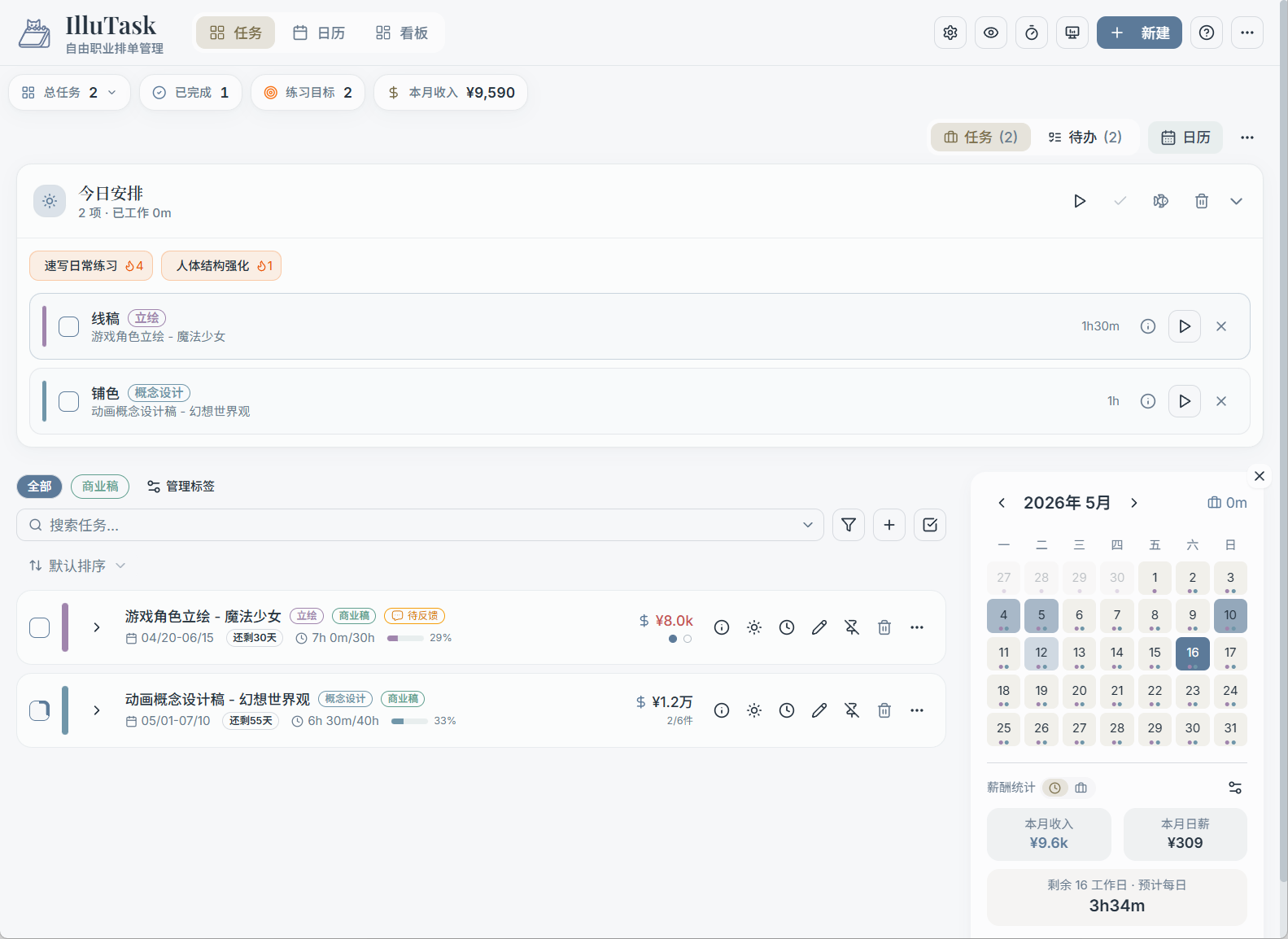
Page Sections (Top to Bottom)
1) Top Navigation & Toolbar
- Top tabs: Tasks / Calendar / Dashboard (each page has a different focus).
- Right toolbar: Common action shortcuts (e.g., New, Sync, Settings, Help — specific buttons can be configured in Settings).
2) Overview Stats Bar
The top of the Tasks page typically shows key statistics (e.g., total tasks, completed count, goal count, monthly earnings, etc.) for a quick snapshot of your current status.
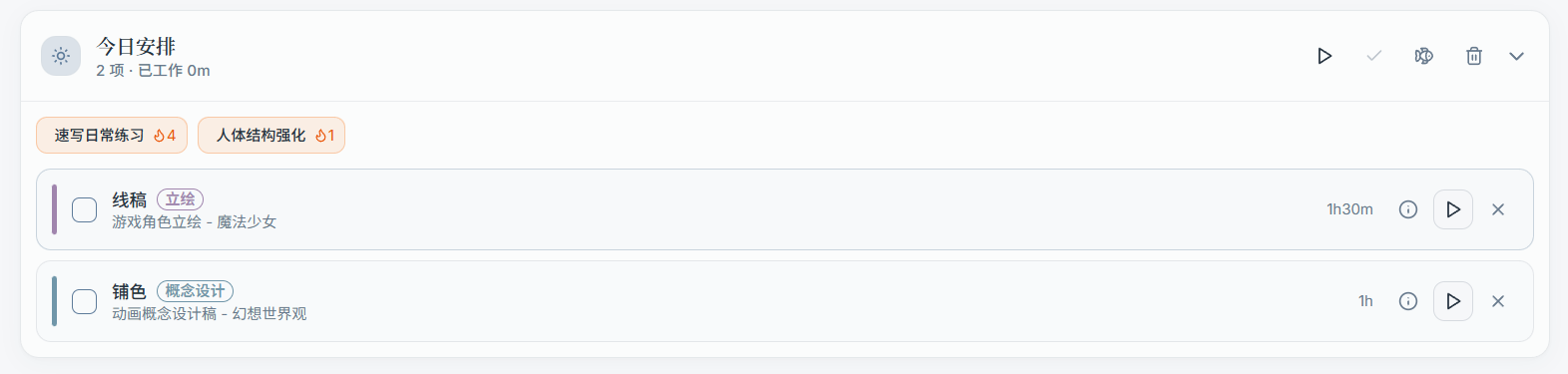
3) "Today's Schedule" Section
Used to manage "what you want to do today" and display today's logged work hours. Common usage:
- Add tasks (or specific nodes) to "Today's Schedule" to focus on what needs to get done today.
- Start timers, mark completions, and give feedback directly here (specific buttons may vary by configuration).
4) Task / Todo List Area
The Tasks page supports switching between two views in the same list area:
- Task list: Projects, commissions, artwork, etc.
- Todo list: Lighter-weight, checklist-style items (different data structure from tasks).
You can use the toggle at the top of the list to switch between "Tasks / Todos" and see the count for each.
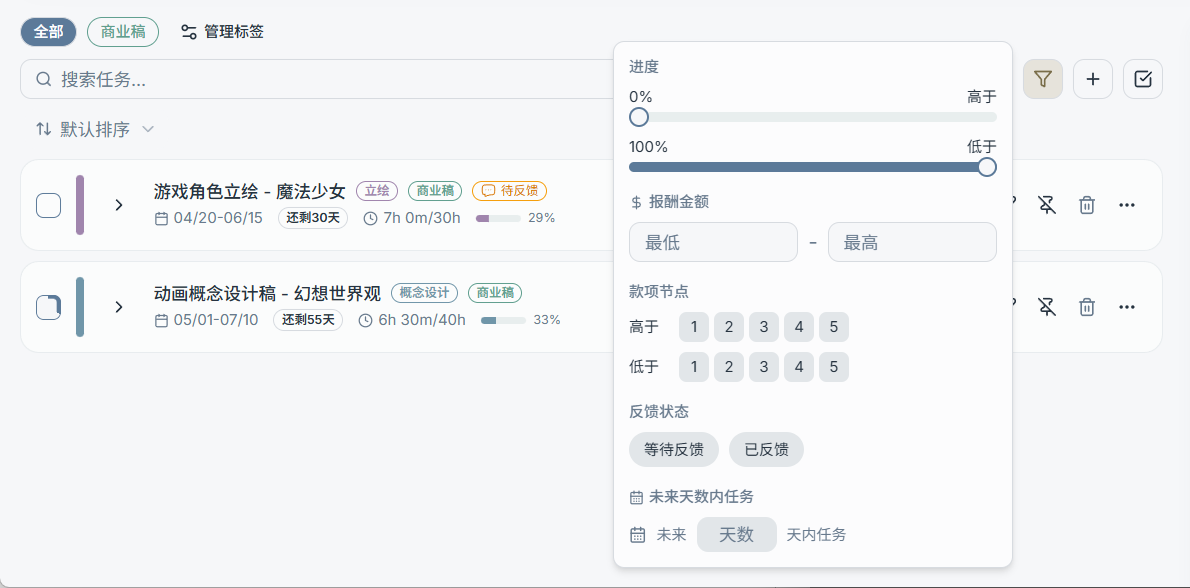
5) Search, Filter & Sort
Above the task list, you'll find:
- Tag pill filters (including "No Tags" and more)
- Search (with selectable scope: title / category / tags / notes / client, etc.)
- Advanced filters (progress, amount, days remaining, feedback status, etc.)
- Sort options (default sort / by deadline / by amount, etc., depending on your version)
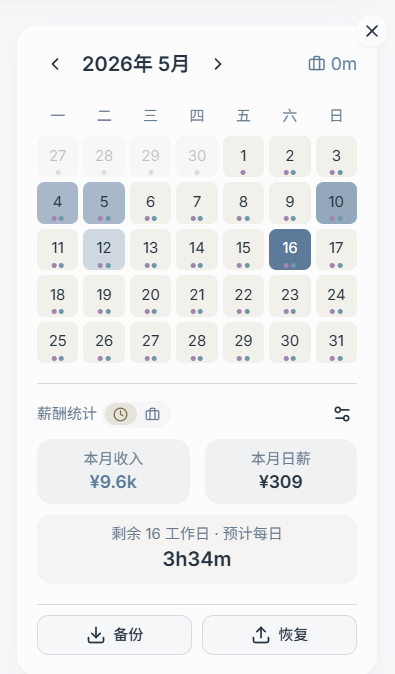
6) Right-Side Calendar Widget (Toggleable)
The Tasks page can show a "Calendar Widget" on the right, used for:
- Browsing tasks / time logs / stat hints for each day by month
- Viewing salary / hours summaries (if enabled)
- Performing local data backup / restore (export / import)
Quick Start (Recommended Workflow)
- Create a task: Choose a category first, then set dates and nodes, then add tags and notes.
- Expand the task in the list, work through nodes and check them off — progress updates automatically.
- Add today's tasks to "Today's Schedule" and log your time (used for statistics).
- Use tags / filters to manage different types of tasks separately (e.g., personal / commercial / Live2D, etc.).
What to Read Next (Use the Left Sidebar)
- Tasks → Create & Edit
- Tasks → Task Items & Node Actions
- Tasks → Search / Filter / Sort (incl. Batch Actions)
- Tasks → Tags (Task Tag)
- Tasks → Categories
- Tasks → Calendar Widget & Backup/Restore
- Todos → Todo Overview / Quick Add / Dates & Repeat / List & Subtasks / Todo Tags