Create & Edit Tasks
This page explains how to create and edit tasks, and what each field means (desktop interface used as example).
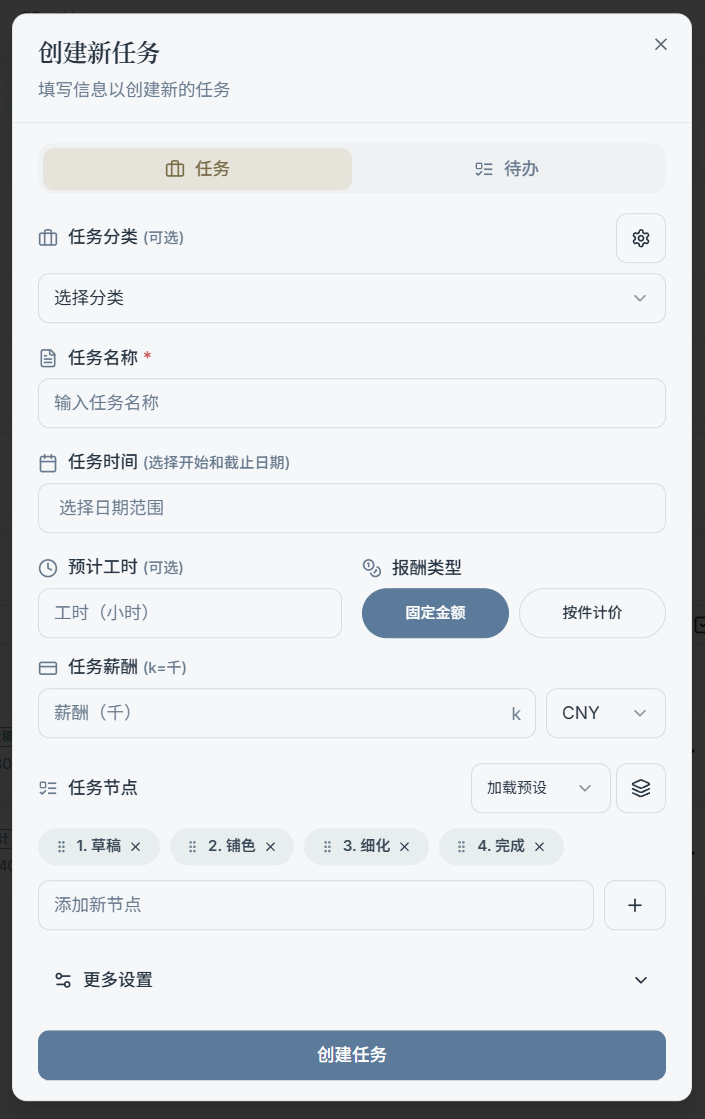
How to Open "New Task"
Common entry points:
- The New button in the top toolbar
- The New Task prompt in the empty state of the Tasks page
- The "+" button in certain widgets or panels
Once open, you can choose to create:
- Task: Best for longer-term work with multi-step node workflows
- Todo: Best for lightweight checklist items (a different type from tasks)
Core Task Fields
Title
The task name, used for search and list display. Keep it short and readable.
Category
The category typically determines:
- Task color (when color mode is set to "Category")
- Default hours and default rate
- Preset nodes (workflow template)
You can open the category manager directly from the dialog.
Start & End Dates
Used for:
- Calendar widget hints
- Days remaining / progress views
- Statistics (e.g., monthly earnings, hours distribution, etc.)
Nodes (Workflow)
Nodes are a task's step checklist. They support:
- Adding / removing nodes
- Drag-to-reorder
- Checking nodes off in the task item to build up progress
You can also select a "node preset / template" to quickly generate a full workflow.
Tags
Used for filtering and labeling. Important rules:
- Tags with the same name are treated as the same tag (no duplicate tags with the same name are created)
- Task color can be configured to use the color of
tags[0](the first tag) if you've selected that mode in Settings
Advanced Settings (Optional)
The content in the advanced section may vary slightly between versions. Common fields include:
- Client info (client name, contact details)
- Notes (longer text, good for recording requirements or important notes)
- Reference images (upload / manage images)
- Rate & billing type (fixed amount, per-piece, etc.)
- Milestones / payment nodes (for tracking payment progress or recording by stage)
How to Edit a Task
Common entry points:
- Click the Edit (pencil) icon on the right side of a task item
- Open Task Details and edit there (notes / images / nodes / more fields)
Tip: For day-to-day use, just update title / category / dates / nodes / tags. Keep more complex content in "Task Details" for a cleaner workflow.