App Usage Statistics: Tags
The Tags page lets you group apps under custom tags and categories, so your usage stats are summarized in a way that matches your actual workflow (e.g., Drawing, Editing, Communication, Slacking).
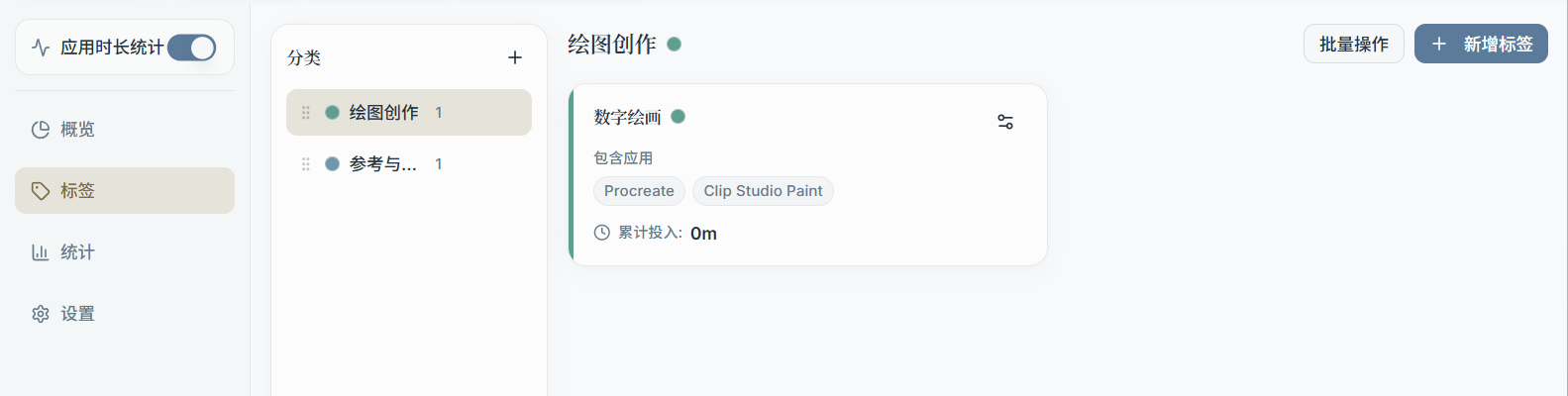
1) Core Concepts: App / Tag / Category
- App: For example,
Visual Studio Code,Chrome,Photoshop - Tag: A custom "purpose label" you define; one tag can be linked to multiple apps
- Category: A higher-level grouping (e.g., "Core Work / Entertainment / Communication")
The typical structure is:
Category → contains multiple Tags → each tag is linked to a set of Apps
2) What You Can Do on the Tags Page
Common operations include:
- Create/edit tags (name, color, parent category)
- Assign apps to a tag (group certain apps under the same tag)
- Adjust category and tag structure (so your stats better reflect your real working patterns)
Note:
- The color of a tag or category affects how it appears visually in the Overview and Stats pages (e.g., bar colors in rankings).
3) How Usage Time Is Calculated
The Tags page itself typically shows aggregated results, calculated roughly as:
- Tag time = sum of usage time for all apps linked to that tag
- Category time = sum of usage time for all tags in that category
If an app isn't covered by any tag, it is generally treated as "Uncategorized" (depending on how the current version handles this).