Mini Timer (Desktop)
The "Mini Timer" is a small floating window provided by the desktop app (Electron) for keeping the timer always visible and quickly switching focus targets (Today's Schedule).
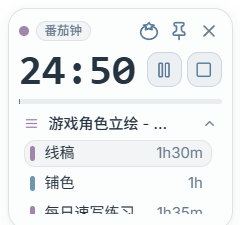
1) How to Show / Hide
Click the "Timer" icon in the top-right toolbar to show or hide the floating window:
- Show: Open the floating window
- Hide: Close the floating window (does not stop the timer)
Tip:
- This button is typically only visible in the desktop app (the web version does not support floating windows).
2) Main Sections of the Floating Window
A. Large Time Display
- Shows the accumulated duration of the current timer
- If "Pomodoro" mode is enabled, shows the remaining time instead (see below)
B. Timer Controls (Start / Pause / Resume / Stop)
Controls the timer state for the current focus target.
C. Current Focus Target
The bottom of the floating window shows the current target (task/node or todo/subtask).
- Click to expand the "Today's Schedule" panel
- In the panel, click any item in Today's Schedule to set it as the new timer target
3) Expanded Panel: Select from Today's Schedule
After expanding, the panel lists:
- Today's tasks (with nodes)
- Today's todos (with subtasks)
Click an item to select it as the timer target; the currently timing item is highlighted.
Tip:
- Completed todos/subtasks may be shown with strikethrough text (for easy identification).
4) Top-Right Button Reference
Some buttons appear in the top-right corner of the floating window when you hover:
- Pomodoro: Enable / disable Pomodoro mode
- Always on Top: Pin / unpin the floating window
- Close: Close the floating window
Usage Tips
- Place the floating window at the edge of your screen so it stays visible without blocking your main work area
- Organize "Today's Schedule" first; then use the floating window for quick switching and timing