Quick Start
This page covers the basics of IlluTask's most commonly used features to help you get up and running quickly.
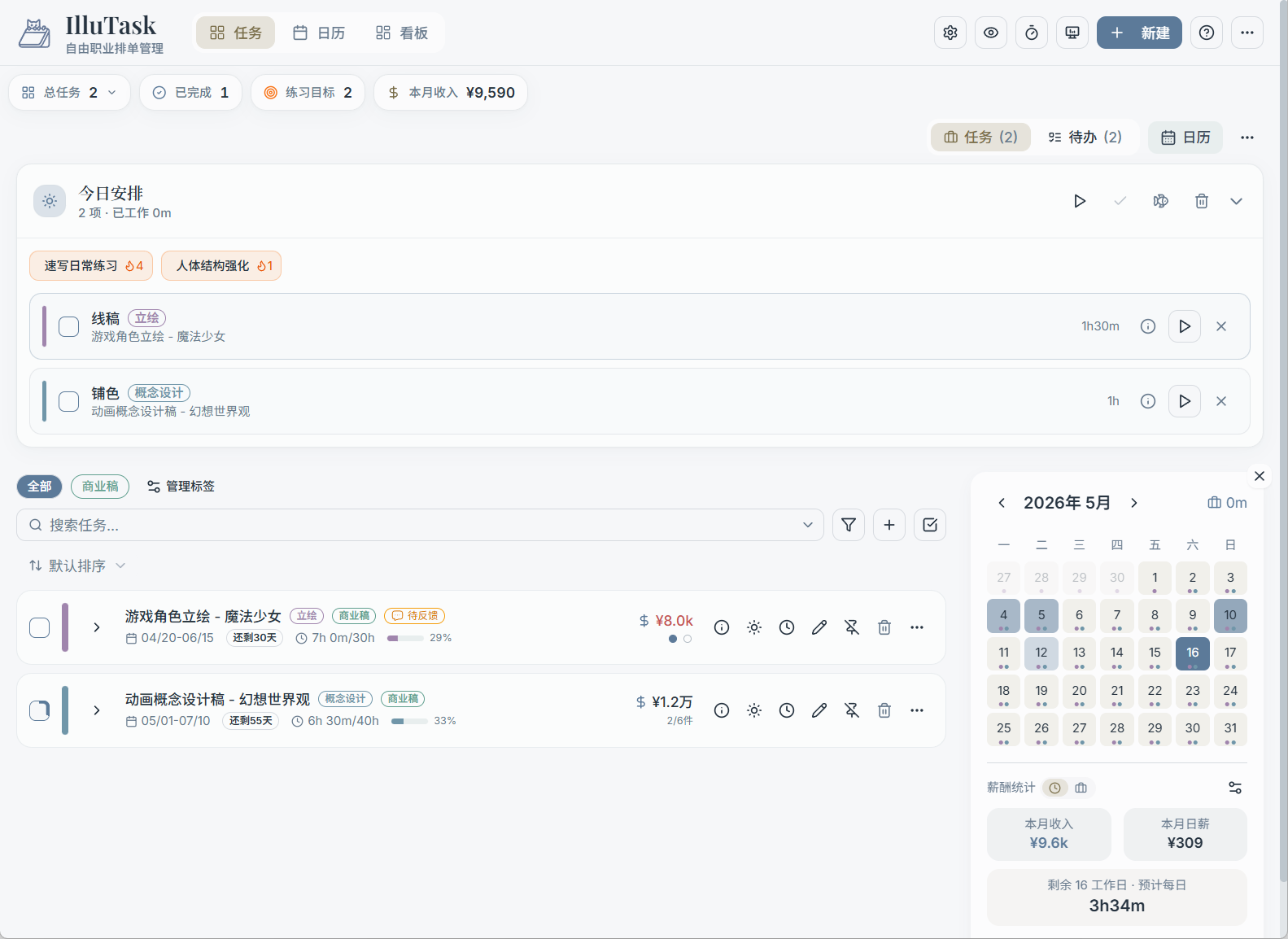
1. Create Your First Task
A task is the core unit in IlluTask, representing one complete commission or project.
Steps:
- Go to the Tasks page and click New Task in the top-right corner
- Enter a task name, choose a category, and set a start date and due date
- In the "Milestones" section, add your work phases — for example: Sketch, Line Art, Coloring, Delivery
- Click Create to finish
Milestones are how you break a large task into smaller steps. Scheduling and time tracking both operate at the milestone level.
→ View full task creation guide
2. Schedule in the Calendar
Drag task milestones onto specific dates to build your work plan.
Steps:
- Go to the Calendar page
- In the left sidebar, expand a task to see its milestone list
- Drag a milestone onto the target date in the calendar
- The milestone will appear in that date's scheduled area
The calendar supports month, week, and multi-day views, plus a Gantt chart for an overview of multiple tasks' time spans.
→ View calendar scheduling guide
3. Log Actual Work Hours
Drag in the timeline to create work-hour records and precisely track how much time each milestone actually took.
Steps:
- Go to the Timeline view in the calendar (single-day or multi-day)
- In the "Actual" column, click and drag downward to create a time block
- Select the corresponding task and milestone
Or use the timer:
- Click the timer button on any task in the task list
- Start the timer, then stop it when you finish working
- The time is automatically logged to the corresponding milestone
4. View App Usage Statistics
The desktop app automatically tracks how long you spend in each application in the background.
Steps:
- Go to the Stats page (the "App Usage" tab in the top bar)
- View today's or this week's app usage breakdown
- On the Tags page, assign commonly used apps to custom tags like "Work" for better categorized reporting
Tag tools like Clip Studio and Photoshop under a "Creative" label to clearly see how many hours a day you actually spend creating.
→ View app usage statistics guide
5. Set Up Your Dashboard
The dashboard is a customizable workspace that puts your most-checked information on one page.
Steps:
- Go to the Dashboard page
- Click Edit in the top-right corner to enter edit mode
- Click the Add button and select the widgets you want (task list, to-dos, progress bar, calendar, etc.)
- Drag to rearrange them, then click Done to exit editing
FAQ
What's the difference between tasks and to-dos? A task represents a complete commission, with start/due dates, milestones, fees, and other properties — ideal for managing projects. A to-do is a lightweight checklist item, suited for everyday miscellaneous things. → To-do guide
What are categories for? Categories color-code your tasks, making it easy to distinguish different types of work in the calendar and stats views. Categories can also have default hourly rates and milestone presets. → Category guide
What is the timer mini-window? A small window exclusive to the desktop app that stays visible and shows the current timer. You can quickly switch the focus target among today's scheduled items. → Timer mini-window guide