Views & Navigation (Timeline / Day / Week / Month)
The calendar offers multiple views for different levels of planning — from seeing the big picture to arranging fine details.
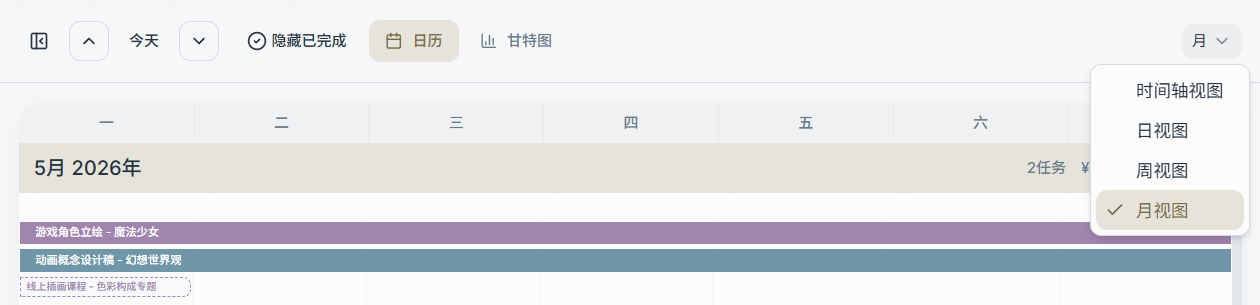
Date Navigation
At the top of the calendar, you can:
- Click the left and right arrows to move between date ranges
- Click Today to jump back to the current day
View Modes
Common views include:
- Timeline: Best for scheduling by the hour and logging work time
- Day: A compact single-day list/overview (great for browsing and light adjustments)
- Week: Browse by week (good for overall scheduling and checking density)
- Month: Browse by month (ideal for a high-level overview and quick navigation)
You can switch views using the dropdown menu in the top-right corner.
Multi-Day Display (1–14 Days)
In Timeline/Day-type views, you can use − / + to adjust the number of days shown (1–14 days).
Suggested uses:
- 1 day: Detailed scheduling and daily review
- 3–7 days: Rolling schedule for the current week
- 10–14 days: A quick scan of upcoming density
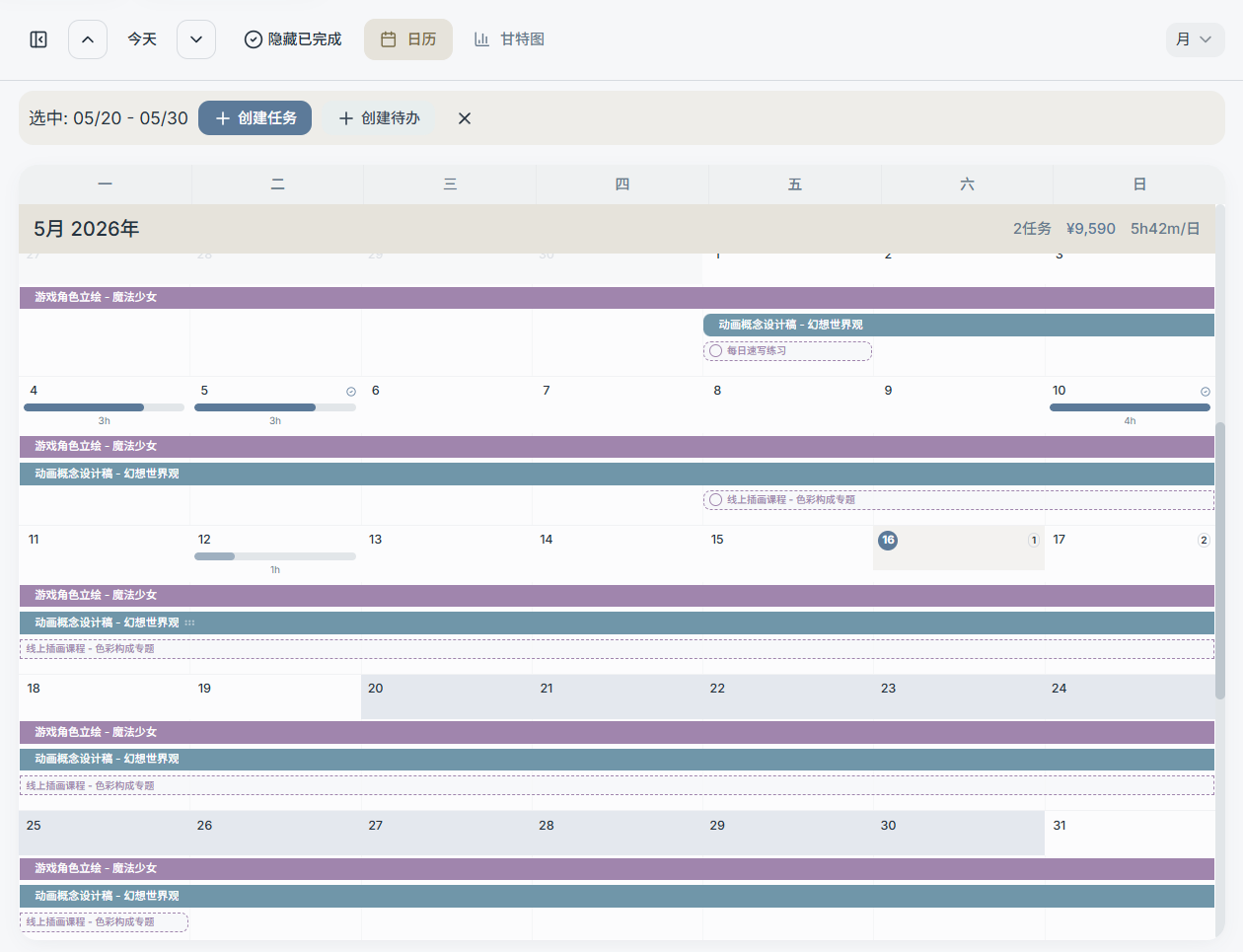
Month View: Select a Date Range and Quick-Create
In the month view, you can select a date range (e.g., 02/01–02/15) and then:
- Create a task: Start and end dates are filled in automatically
- Create a to-do: The date range is filled in automatically
Hide Completed
"Hide Completed" can be toggled in the sidebar (to reduce list clutter), and the main calendar will also display a cleaner view of your schedule.