Sidebar & Drag Scheduling
The left sidebar in the calendar lets you browse your tasks and to-dos, then drag them onto the calendar to schedule them.
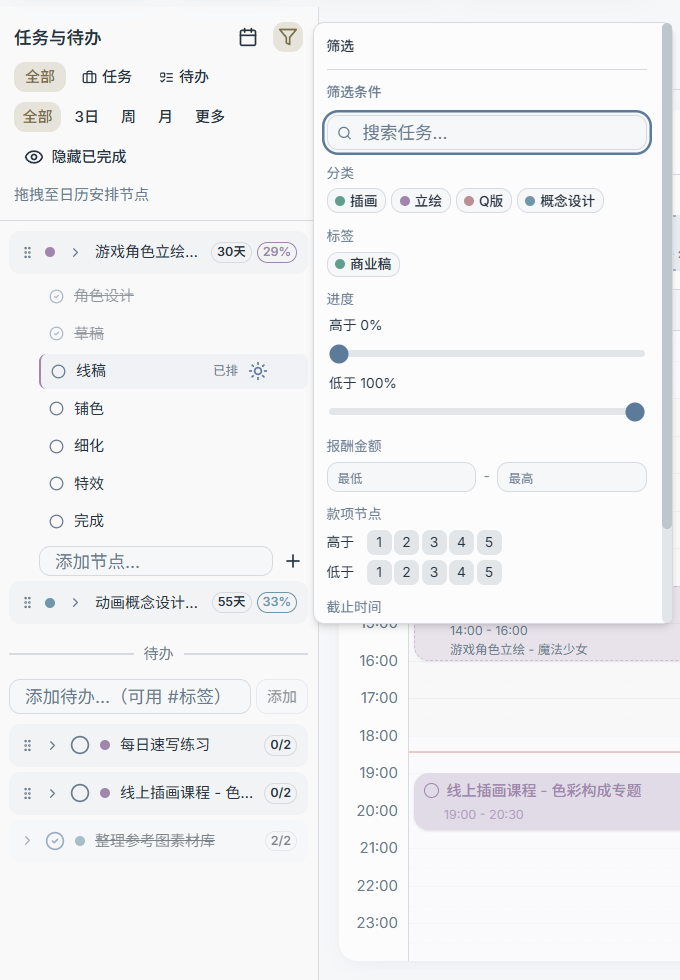
1) Switch Between Tasks / To-Dos
The top of the sidebar lets you switch what's displayed:
- All: Show both tasks and to-dos
- Tasks: Show tasks only
- To-Dos: Show to-dos only
2) Filter by Time Range (Sidebar)
This group of buttons lets you quickly filter the sidebar list by a time-related scope:
- All
- 3 Days
- Week
- Month
- More (custom date range)
Note: This filter primarily affects how the sidebar list is filtered — it does not necessarily change the main calendar view mode.
3) Hide Completed
Click Hide Completed / Show Completed to reduce clutter.
4) Expand a Task → Drag Milestones onto the Calendar
Tasks are typically scheduled at the milestone level. Common steps:
- Click the expand button on a task to reveal its milestone list.
- Drag a milestone onto a day in the calendar:
- If you drag it to the current day's "Today's Schedule" area: it is added to today's schedule (convenient for same-day management)
- If you drag it to a different day: it is scheduled on that date (you can then drag out a specific time slot in the timeline)
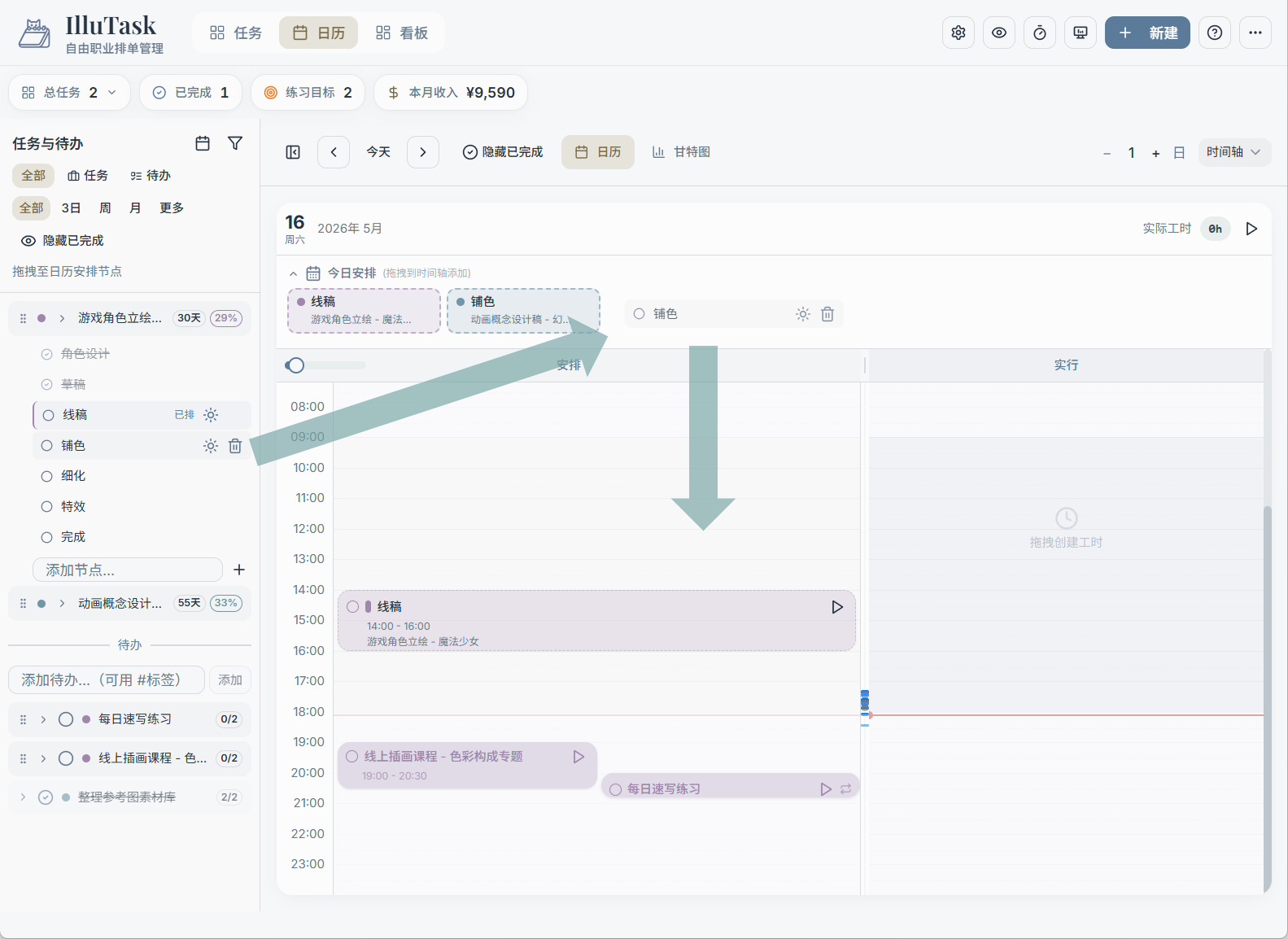
5) Drag To-Dos onto the Calendar
To-dos can also be dragged directly to:
- Today's Schedule (add to what you're doing today)
- Or a specific date (creating a scheduled to-do for that day)
Mobile Usage Note
Drag-and-drop with a mouse is usually not practical on mobile. The calendar supports a long-press gesture to trigger drag mode (refer to the current version for exact interaction behavior).