Calendar: Overview
The Calendar page is where you place tasks, milestones, and to-dos on specific dates and time slots to create an actionable schedule, and where you record the actual time you put in.
In the calendar, you'll typically do two types of things:
- Planned: Drag tasks or milestones onto the timeline to assign a planned time slot.
- Actual: Record time blocks for work that actually happened (work hours / focus sessions), used for reporting and review.
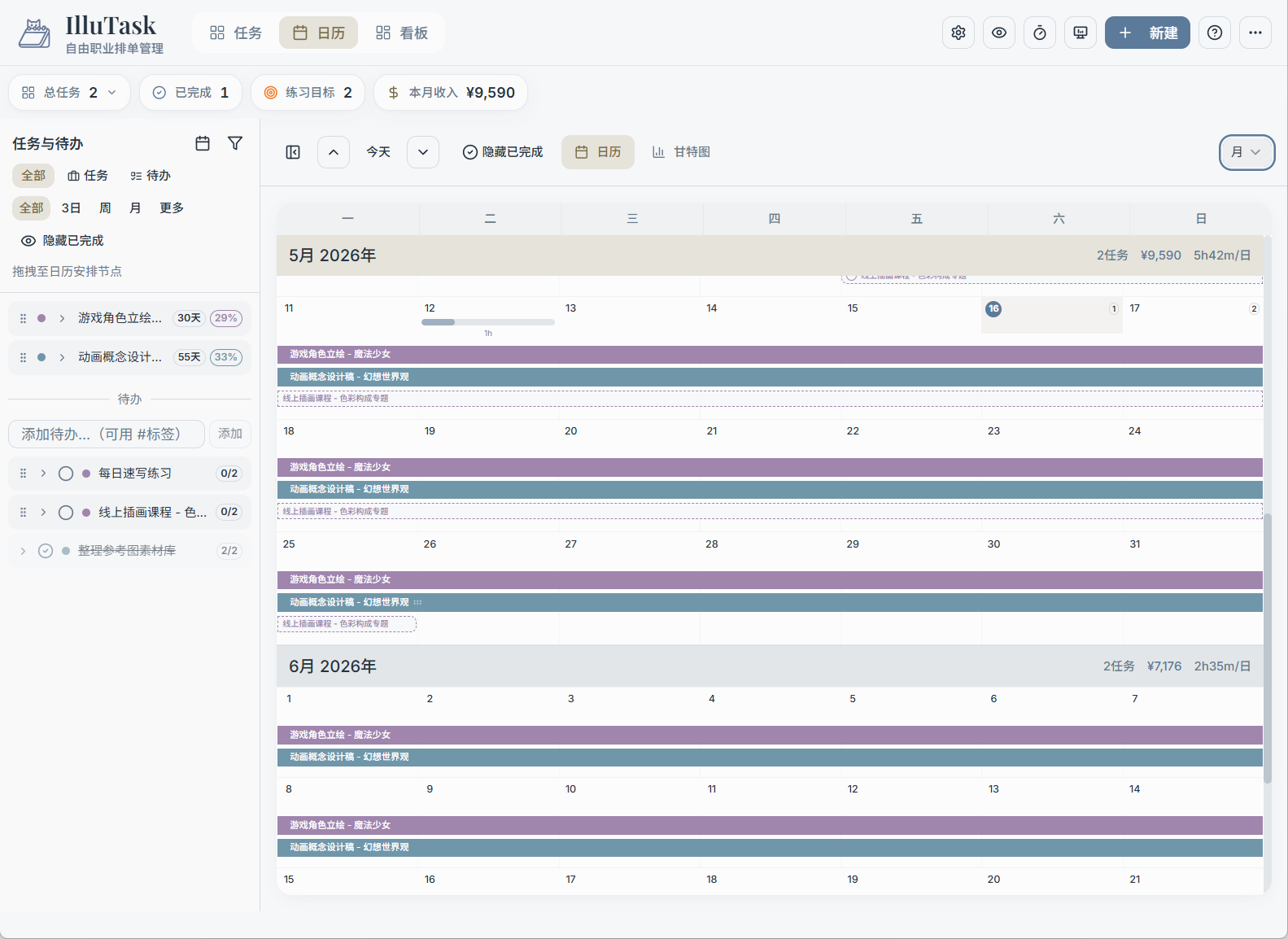
Page Areas (Left to Right)
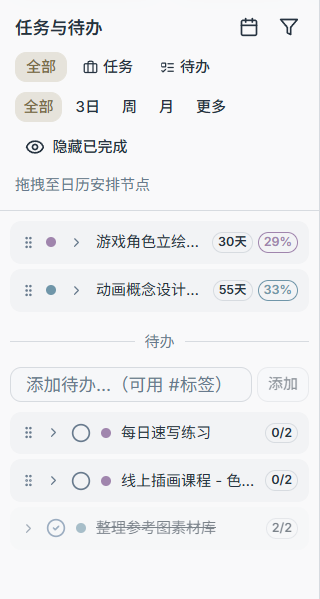
1) Left: Task/To-Do List Sidebar
This is your "source library." Here you can:
- Switch between tasks and to-dos
- Filter by time range (All / 3 Days / Week / Month / More)
- Hide completed items
- Expand a task to see its milestones, then drag tasks, milestones, or to-dos onto the calendar to schedule them
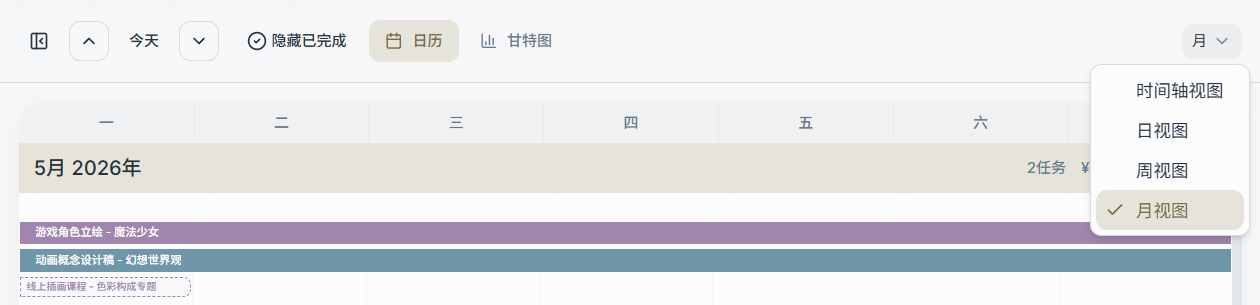
2) Center: Main Calendar Area
The top toolbar includes:
- Date navigation: previous/next day, return to today
- View mode: Timeline / Day / Week / Month
- Day count: In Timeline/Day-type views, you can display 1–14 days (multi-day view)
- Gantt chart toggle: switch between Calendar and Gantt chart
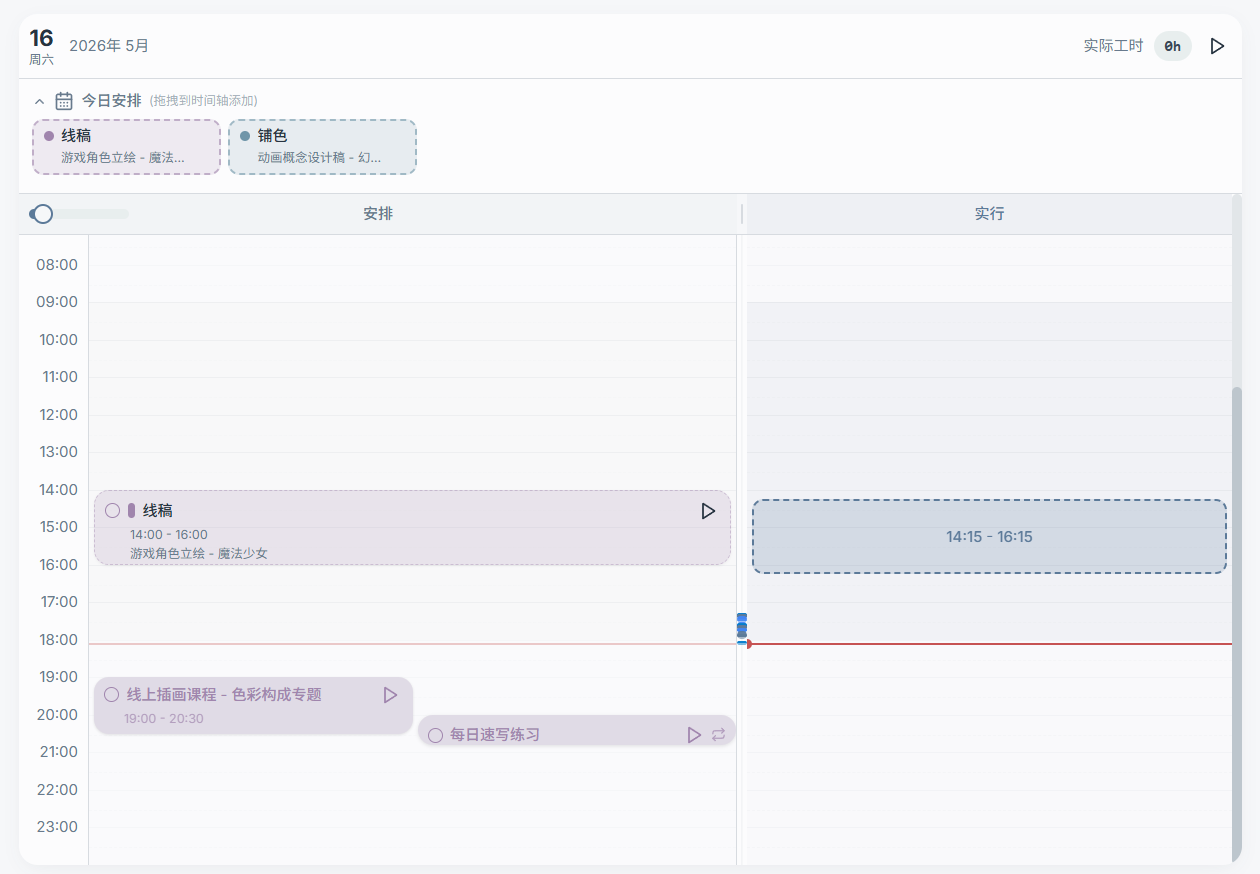
3) Main Content: Timeline (Planned/Actual) or List View
In the Timeline view, a day is divided into:
- Today's Schedule: A separate area (does not scroll with the timeline) for collecting "things to do today" — tasks, milestones, and to-dos
- Timeline:
- Left Planned column: scheduled time blocks
- Right Actual column: actual work hours / focus records (drag to create)
In the Day view (non-timeline), the day's content is shown in a more compact list format (better for browsing and light adjustments).
Recommended Workflow (Most Common)
- Find a task in the left sidebar and expand it to the milestone you need to work on.
- Drag the milestone onto a day's timeline (Planned column) and drag out a time slot to schedule it.
- Add "what to do today" items to Today's Schedule, and drag them into the timeline for fine-tuning.
- When you actually start working, use the "Actual" column to log your hours (drag to create a time block, or use the timer button).
Read Next (Select from the left sidebar)
- Calendar → Sidebar & Drag Scheduling
- Calendar → Views & Navigation (Timeline / Day / Week / Month, multi-day)
- Calendar → Timeline: Planned
- Calendar → Timeline: Actual (Work Hours / Focus)
- Calendar → Gantt Chart