Timeline: Actual (Work Hours / Focus)
The "Actual" column is used to record real work time that actually happened, for use in reporting and review. Unlike "Planned" — which is your plan — "Actual" is what really occurred.
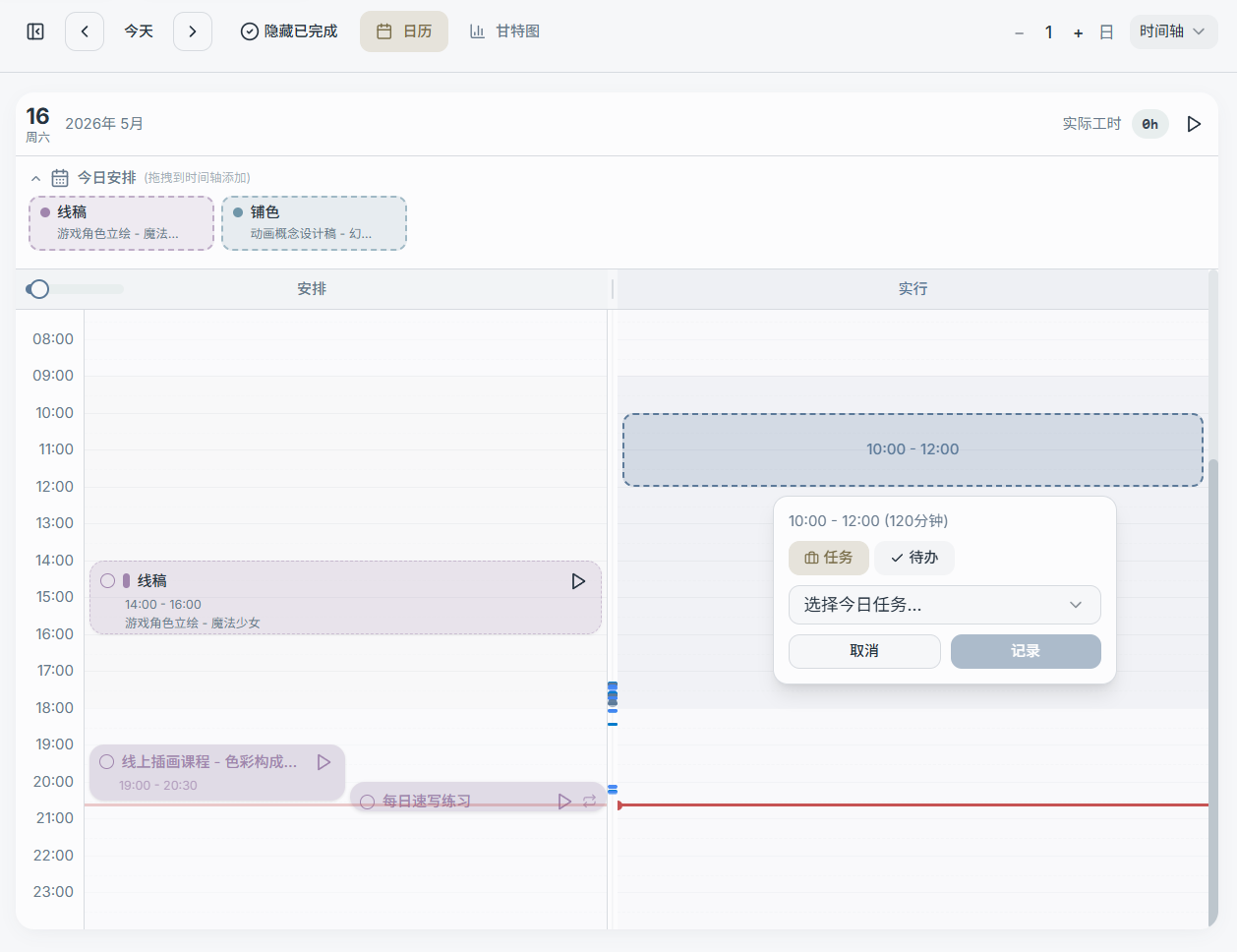
1) Drag to Log Work Time
Drag in an empty area of the "Actual" column to create a work-hour block. The empty state typically shows a prompt:
Drag to log time
After creating a block, you can use the popover/dialog to link it to:
- A specific task or milestone (recommended: makes it easier to report by step)
- Or another type of record (depending on the current version)
2) Timer Button (Start/Stop)
At the top of the timeline, you'll typically see:
- Actual hours summary (cumulative for the day)
- Timer status (if a timer is running)
- Start/Stop button
This is ideal for quickly logging time when you start and finish working, without having to manually drag a time block each time.
3) Editing an Actual Time Block
Actual time blocks typically support:
- Adjusting the time range (start/end)
- Reassigning to a different task or milestone
- Deleting (deleting a block does not affect the task itself, only the time record)
4) Current Time Indicator
The current day's timeline usually shows a red indicator line marking the current time, making it easy to align your plan with what's actually happening.